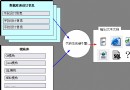
QQ 風格的側邊摺疊面板是經典 UI 模式:主選單按鈕垂直排列,點擊展開子選單面板。本文完整實作 WinForms 版本,涵蓋動態建立控制項、佈局計算、展開/摺疊動畫、事件處理與擴充性設計。
using System;
using System.Drawing;
using System.Windows.Forms;

public class QQPanel : Panel
{
    // 設定屬性
    public string[] MainModules { get; set; }
    public string[,] SubModules { get; set; }
    public int MainButtonHeight { get; set; } = 50;
    public int SubButtonHeight { get; set; } = 30;
    public Color MainBackColor { get; set; } = SystemColors.Control;
    public Color SubBackColor { get; set; } = Color.AliceBlue;
    public FlatStyle ButtonFlatStyle { get; set; } = FlatStyle.Flat;

    // 內部狀態
    private Button _expandedButton = null;
    private Panel _subPanel = null;

    public QQPanel()
    {
        this.BorderStyle = BorderStyle.FixedSingle;
    }

    public void Initialize()
    {
        this.Controls.Clear();
        _expandedButton = null;
        _subPanel = null;

        if (MainModules == null) return;

        for (int i = 0; i < MainModules.Length; i++)
        {
            CreateMainButton(i);
        }
    }

    private void CreateMainButton(int index)
    {
        var btn = new Button
        {
            Name = $"MainBtn_{index}",
            Text = MainModules[index],
            Width = this.Width,
            Height = MainButtonHeight,
            Top = MainButtonHeight * index,
            FlatStyle = ButtonFlatStyle,
            BackColor = MainBackColor,
            Tag = index // 儲存索引
        };

        btn.Click += MainButton_Click;
        this.Controls.Add(btn);
    }

    private void MainButton_Click(object sender, EventArgs e)
    {
        Button clickedBtn = (Button)sender;
        int index = (int)clickedBtn.Tag;

        // 若點擊已展開的按鈕,則摺疊
        if (_expandedButton == clickedBtn)
        {
            CollapseSubPanel();
            _expandedButton = null;
            return;
        }

        // 展開新的子面板
        ExpandSubPanel(clickedBtn, index);
    }

    private void ExpandSubPanel(Button mainBtn, int mainIndex)
    {
        CollapseSubPanel(); // 先關閉舊的

        _expandedButton = mainBtn;

        // 計算子面板位置與大小
        int subTop = MainButtonHeight * (mainIndex + 1);
        int subHeight = this.Height - MainButtonHeight * MainModules.Length;

        if (subHeight < SubButtonHeight * 3) subHeight = SubButtonHeight * 3; // 最小高度

        _subPanel = new Panel
        {
            Name = $"SubPanel_{mainIndex}",
            Top = subTop,
            Left = 0,
            Width = this.Width,
            Height = subHeight,
            BackColor = SubBackColor,
            BorderStyle = BorderStyle.FixedSingle
        };

        // 建立子按鈕
        int subCount = SubModules.GetLength(1);
        for (int j = 0; j < subCount; j++)
        {
            string subText = SubModules[mainIndex, j];
            if (string.IsNullOrEmpty(subText)) continue;

            var subBtn = new Button
            {
                Name = $"SubBtn_{mainIndex}_{j}",
                Text = subText,
                Top = SubButtonHeight * j,
                Left = 0,
                Width = this.Width,
                Height = SubButtonHeight,
                FlatStyle = ButtonFlatStyle,
                BackColor = SubBackColor,
                Tag = new { Main = mainIndex, Sub = j }
            };

            subBtn.Click += SubButton_Click;
            _subPanel.Controls.Add(subBtn);
        }

        this.Controls.Add(_subPanel);

        // 重新排列主按鈕位置 (被展開面板往下推)
        RearrangeMainButtons(mainIndex);
    }

    private void CollapseSubPanel()
    {
        if (_subPanel != null)
        {
            this.Controls.Remove(_subPanel);
            _subPanel.Dispose();
            _subPanel = null;
        }

        // 恢復主按鈕原始位置
        for (int i = 0; i < MainModules.Length; i++)
        {
            if (this.Controls[$"MainBtn_{i}"] is Button btn)
            {
                btn.Top = MainButtonHeight * i;
            }
        }
    }

    private void RearrangeMainButtons(int expandedIndex)
    {
        for (int i = 0; i < MainModules.Length; i++)
        {
            if (this.Controls[$"MainBtn_{i}"] is Button btn)
            {
                if (i <= expandedIndex)
                {
                    btn.Top = MainButtonHeight * i;
                }
                else
                {
                    // 往下推:原位置 + 子面板高度
                    btn.Top = MainButtonHeight * i + _subPanel.Height;
                }
            }
        }
    }

    private void SubButton_Click(object sender, EventArgs e)
    {
        Button btn = (Button)sender;
        dynamic tag = btn.Tag;
        int mainIdx = tag.Main;
        int subIdx = tag.Sub;

        // 觸發自訂事件
        OnSubItemClicked(mainIdx, subIdx, btn.Text);
    }

    // 對外事件
    public event EventHandler SubItemClicked;

    protected virtual void OnSubItemClicked(int mainIndex, int subIndex, string text)
    {
        SubItemClicked?.Invoke(this, new SubItemClickedEventArgs(mainIndex, subIndex, text));
    }
}

public class SubItemClickedEventArgs : EventArgs
{
    public int MainIndex { get; }
    public int SubIndex { get; }
    public string Text { get; }

    public SubItemClickedEventArgs(int main, int sub, string text)
    {
        MainIndex = main;
        SubIndex = sub;
        Text = text;
    }
}
public partial class MainForm : Form
{
    private QQPanel qqPanel;

    public MainForm()
    {
        InitializeComponent();
        InitializeQQPanel();
    }

    private void InitializeQQPanel()
    {
        qqPanel = new QQPanel
        {
            Dock = DockStyle.Left,
            Width = 200,
            MainModules = new[] { "訊息", "聯絡人", "群組", "設定" },
            SubModules = new string[4, 3]
            {
                { "收件箱", "發件箱", "草稿箱" },
                { "好友列表", "陌生人", "黑名單" },
                { "我的群組", "建立群組", "群組搜尋" },
                { "個人設定", "系統設定", "關於" }
            }
        };

        qqPanel.SubItemClicked += QqPanel_SubItemClicked;
        qqPanel.Initialize();

        this.Controls.Add(qqPanel);
    }

    private void QqPanel_SubItemClicked(object sender, SubItemClickedEventArgs e)
    {
        MessageBox.Show($"點擊:{e.Text} (主選單:{e.MainIndex}, 子選單:{e.SubIndex})");
        // 這裡切換右側內容頁面
        SwitchContentPage(e.MainIndex, e.SubIndex);
    }

    private void SwitchContentPage(int main, int sub)
    {
        // 實作內容切換邏輯
    }
}
using System.Windows.Forms;

public class AnimatedQQPanel : QQPanel
{
    private Timer _animationTimer;
    private int _targetHeight;
    private int _animationStep = 10;
    private bool _isExpanding;

    public AnimatedQQPanel()
    {
        _animationTimer = new Timer { Interval = 15 };
        _animationTimer.Tick += AnimationTimer_Tick;
    }

    private void ExpandSubPanel(Button mainBtn, int mainIndex)
    {
        // ... 建立 _subPanel 但 Height 設為 0 ...
        _subPanel.Height = 0;
        this.Controls.Add(_subPanel);

        _targetHeight = CalculateSubPanelHeight(mainIndex);
        _isExpanding = true;
        _animationTimer.Start();
    }

    private int CalculateSubPanelHeight(int mainIndex)
    {
        int count = 0;
        for (int j = 0; j < SubModules.GetLength(1); j++)
            if (!string.IsNullOrEmpty(SubModules[mainIndex, j])) count++;
        return count * SubButtonHeight;
    }

    private void AnimationTimer_Tick(object sender, EventArgs e)
    {
        if (_isExpanding)
        {
            _subPanel.Height += _animationStep;
            if (_subPanel.Height >= _targetHeight)
            {
                _subPanel.Height = _targetHeight;
                _animationTimer.Stop();
                RearrangeMainButtons(Array.IndexOf(MainModules, _expandedButton.Text));
            }
        }
        else
        {
            _subPanel.Height -= _animationStep;
            if (_subPanel.Height <= 0)
            {
                _subPanel.Height = 0;
                _animationTimer.Stop();
                CollapseSubPanel();
            }
        }
    }
}
// MenuConfig.json
{
  "Modules": [
    {
      "Id": "msg",
      "Text": "訊息",
      "Icon": "msg.png",
      "Children": [
        { "Id": "inbox", "Text": "收件箱", "Action": "ShowInbox" },
        { "Id": "sent", "Text": "發件箱", "Action": "ShowSent" }
      ]
    },
    {
      "Id": "contacts",
      "Text": "聯絡人",
      "Children": [
        { "Id": "friends", "Text": "好友列表" },
        { "Id": "strangers", "Text": "陌生人" }
      ]
    }
  ]
}

// 載入邏輯
public void LoadFromJson(string jsonPath)
{
    string json = File.ReadAllText(jsonPath);
    var config = JsonSerializer.Deserialize(json);

    MainModules = config.Modules.Select(m => m.Text).ToArray();
    SubModules = new string[config.Modules.Count,
        config.Modules.Max(m => m.Children?.Count ?? 0)];

    for (int i = 0; i < config.Modules.Count; i++)
    {
        for (int j = 0; j < config.Modules[i].Children.Count; j++)
        {
            SubModules[i, j] = config.Modules[i].Children[j].Text;
        }
    }

    Initialize();
} | 面向 | 建議 |
|---|---|
| 控制項建立 | 動態建立而非設計器,支援資料驅動 |
| 佈局計算 | 集中在 RearrangeMainButtons,避免分散邏輯 |
| 事件設計 | 使用自訂 EventArgs 傳遞豐富資訊 |
| 記憶體管理 | 摺疊時 Dispose 子面板與按鈕 |
| 擴充性 | 預留 Tag、事件、虛擬方法供繼承覆寫 |
| 效能 | 大量項目考慮虛擬化或分頁載入 |
新專案建議使用 WPF 的 Expander 或 TreeView 配合 DataTemplate,或 WinUI 3 的 NavigationView:
QQ 面板核心在於「主按鈕陣列 + 動態子面板 + 位置重算」三大機制。封裝為可重用控制項 (QQPanel) 並暴露資料屬性與事件,即可實現資料驅動、高內聚低耦合的設計。動畫效果可透過 Timer 漸變 Height 實現。現代桌面開發建議遷移至 WPF/WinUI 獲得更豐富的 UI 能力與開發體驗。