Visual C# .NET 是 Visual Studio 系列的新成員,語法基於 C/C++ 並強化組件化編程。本教程通過構建 QuickSort 控制台應用,涵蓋專案建立、控制台 I/O、檔案操作、陣列集合、函數遞迴、除錯技巧等核心技能。
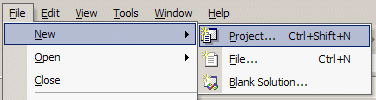
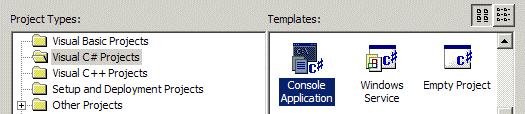

修改 Class1.cs:
using System;
namespace quicksort {
    class Class1 {
        static void Main(string[] args) {
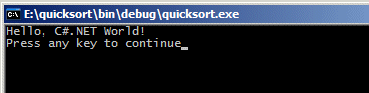
            Console.WriteLine("Hello, C#.NET World!");
        }
    }
}
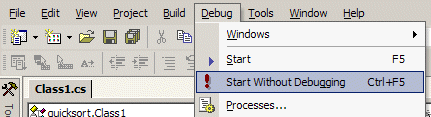
編譯(Build → Build),執行(Debug → Start Without Debugging)。
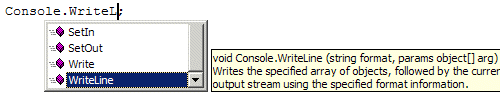


// 單行,/* */ 多行using System; 後可直接用 Consolestring[] args 接收命令列參數Console.Write("Source: ");
string src = Console.ReadLine();
Console.Write("Output: ");
string dest = Console.ReadLine();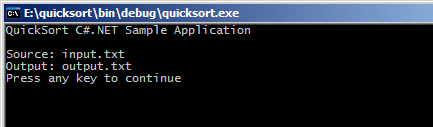
using System.Collections;
ArrayList lines = new ArrayList();
lines.Add("new item");
string s = (string)lines[0]; // 或 lines.Item(0)using System.IO;
// 讀取
FileStream fsIn = new FileStream(src, FileMode.Open, FileAccess.Read);
StreamReader sr = new StreamReader(fsIn);
while ((line = sr.ReadLine()) != null) lines.Add(line);
sr.Close(); fsIn.Close();
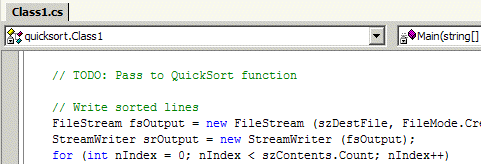
// 寫入(排序後)
FileStream fsOut = new FileStream(dest, FileMode.Create, FileAccess.Write);
StreamWriter sw = new StreamWriter(fsOut);
for (int i = 0; i < lines.Count; i++) sw.WriteLine(lines[i]);
sw.Close(); fsOut.Close();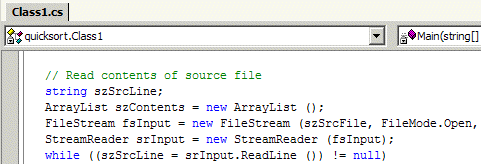
static void QuickSort(ArrayList arr, int low, int high) {
    if (low < high) {
        int pivot = Partition(arr, low, high);
        QuickSort(arr, low, pivot - 1);
        QuickSort(arr, pivot + 1, high);
    }
}

static int Partition(ArrayList arr, int low, int high) {
    string pivot = (string)arr[low];
    int left = low + 1, right = high;
    while (left <= right) {
        while (left <= right && ((string)arr[left]).CompareTo(pivot) <= 0) left++;
        while (left <= right && ((string)arr[right]).CompareTo(pivot) > 0) right--;
        if (left < right) Swap(arr, left++, right--);
    }
    Swap(arr, low, right);
    return right;
}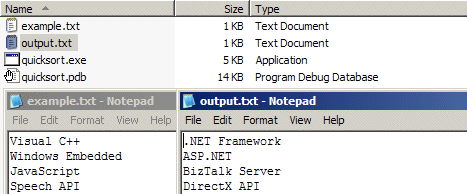
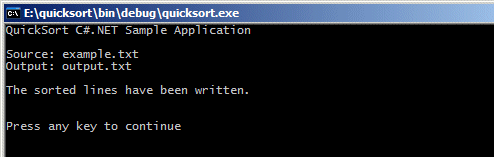
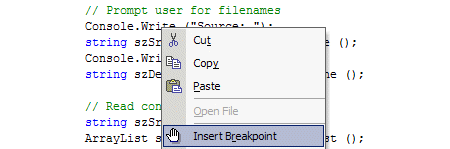
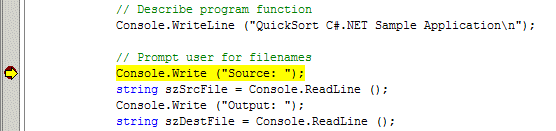
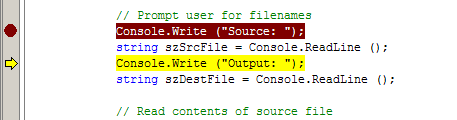
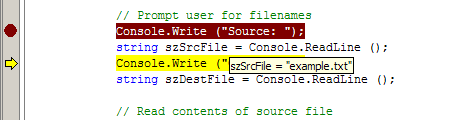
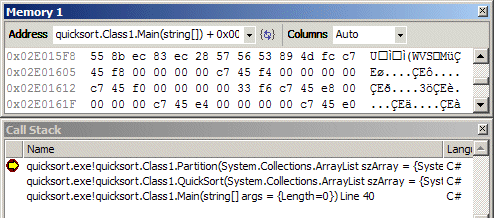
文末提供完整 QuickSort.cs、專案檔與編譯後可執行檔下載。推薦延伸閱讀:《Inside C#》、《C# How to Program》、《A Programmer's Introduction to C#》、《Introducing Microsoft .NET》。