大型檔案(影片、映像檔、備份)超過儲存媒體容量(如 USB、光碟、早期軟碟)時,需分割為多個小檔案分批攜帶,目的端再合併還原。
| 類別 | 角色 |
|---|---|
FileStream | 檔案位元組串流,支援同步/非同步讀寫、定位、鎖定 |
BinaryReader | 從串流讀取基本型別 (ReadBytes, ReadInt32, ReadString...) |
BinaryWriter | 向串流寫入基本型別 (Write, WriteBytes...) |
本範例採用同步模式,程式碼簡單且不易出錯。
OpenFileDialog - 選擇大檔案ComboBox - 分割大小 (720K/1440K/2880K...)TextBox - 顯示來源檔案路徑、輸出目錄ProgressBar - 顯示進度Button - 選擇檔案、執行分割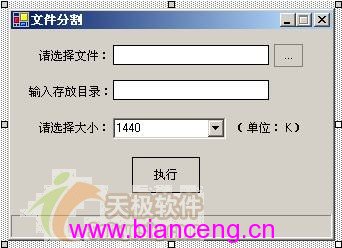
private void btnSplit_Click(object sender, EventArgs e)
{
    int chunkSize = int.Parse(cboSize.Text) * 1024; // KB → Bytes
    string srcFile = txtSource.Text;
    string outDir = txtOutputDir.Text;

    // 清空/建立輸出目錄
    if (Directory.Exists(outDir)) Directory.Delete(outDir, true);
    Directory.CreateDirectory(outDir);

    using (FileStream fs = new FileStream(srcFile, FileMode.Open, FileAccess.Read))
    using (BinaryReader reader = new BinaryReader(fs))
    {
        long totalChunks = fs.Length / chunkSize;
        if (fs.Length % chunkSize != 0) totalChunks++;

        progressBar1.Maximum = (int)totalChunks;
        progressBar1.Value = 0;

        // 取得副檔名
        string ext = Path.GetExtension(srcFile).TrimStart('.');

        for (int i = 1; i <= totalChunks; i++)
        {
            // 輸出檔名:0001.avi, 0002.avi...
            string outFile = Path.Combine(outDir, $"{i:D4}.{ext}");

            using (FileStream outFs = new FileStream(outFile, FileMode.Create))
            using (BinaryWriter writer = new BinaryWriter(outFs))
            {
                byte[] buffer = reader.ReadBytes(chunkSize);
                writer.Write(buffer);
            }

            progressBar1.Value = i;
        }
    }
    MessageBox.Show("分割完成!");
    progressBar1.Value = 0;
}
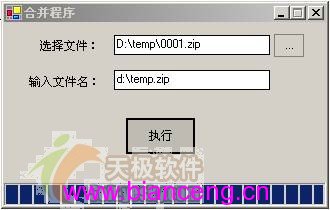
OpenFileDialog - 選擇分割檔案目錄中任一檔案 (以取得目錄)TextBox - 顯示選取檔案、輸入合併後檔名ProgressBar、Button - 同分割器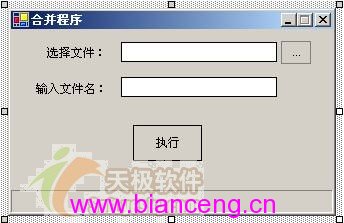
string sourceDir = ""; // 儲存分割檔目錄

private void btnSelect_Click(object sender, EventArgs e)
{
    if (openFileDialog1.ShowDialog() == DialogResult.OK)
    {
        txtSelected.Text = openFileDialog1.FileName;
        // 取得目錄路徑
        sourceDir = Path.GetDirectoryName(openFileDialog1.FileName);
        btnMerge.Enabled = true;
    }
}

private void btnMerge_Click(object sender, EventArgs e)
{
    string outFile = txtOutput.Text;
    string[] files = Directory.GetFiles(sourceDir);
    Array.Sort(files); // 確保 0001, 0002... 順序

    progressBar1.Maximum = files.Length;
    progressBar1.Value = 0;

    using (FileStream outFs = new FileStream(outFile, FileMode.Create))
    using (BinaryWriter writer = new BinaryWriter(outFs))
    {
        foreach (string file in files)
        {
            using (FileStream inFs = new FileStream(file, FileMode.Open))
            using (BinaryReader reader = new BinaryReader(inFs))
            {
                byte[] buffer = reader.ReadBytes((int)inFs.Length);
                writer.Write(buffer);
            }
            progressBar1.Value++;
        }
    }
    MessageBox.Show("合併完成!");
    progressBar1.Value = 0;
}
Array.Sort 確保分割檔按序寫入,否則檔案損毀。ReadBytes(chunkSize) 一次讀取分割塊大小,記憶體效率佳。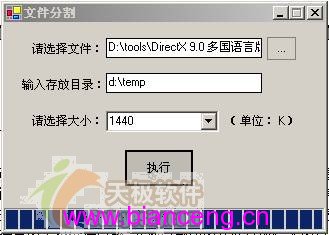
掌握 FileStream、BinaryReader、BinaryWriter 三大核心類別,即可輕鬆實作檔案分割合併、備份還原、格式轉換等二進位檔案處理任務。同步模式適合教學與中小型檔案;大檔案高效能場景可改用非同步 BeginRead/EndRead、MemoryMappedFile 或 FileStream.CopyToAsync。