本系列教學專為初學者設計,旨在透過完整的問卷調查管理系統案例,引導新手熟悉專案開發流程,以及在 .NET 平台上使用 Visual Studio 2005 和 C# 進行 Windows Forms 程式設計。課程刻意避開底層原理與效能優化等進階主題,適合入門練習。
本章將帶領大家實作問卷統計的核心功能,包含新增統計、查看統計、合併統計與清空統計等操作。
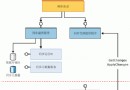
統計功能的設計相對直觀,核心流程如下圖所示:
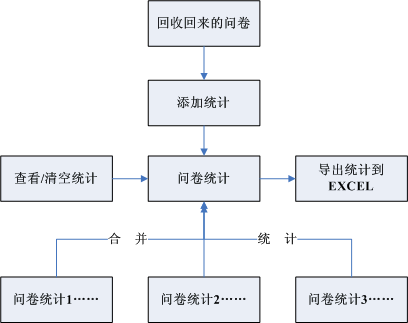
簡單說明:使用者發放問卷並回收,在系統中開啟已錄入的問卷,逐份勾選受訪者的選項並提交。系統自動累加統計次數並計算百分比,最後可匯出至 Excel 列印報表。
以下程式碼示範如何綁定問卷資料、動態建立題目與選項控制項,並透過 Tag 屬性儲存識別碼以利後續統計:
DbOperate dboperate = new DbOperate(); // 實例化資料庫操作物件

/// <summary>
/// 綁定問卷資料
/// </summary>
/// <param name="sid">問卷 ID</param>
private void BindData(string sid)
{
    // 查詢問卷基本資訊
    string surveySql = "Select Survey_Name,Survey_Sponsor,Survey_OutCount,Survey_Count,Survey_TitleCount,Survey_DateTime From Lj_Survey Where id=" + Convert.ToInt32(sid);
    DataTable sdt = dboperate.GetDataTable(surveySql);
    if (sdt.Rows.Count > 0)
    {
        SurveyName.Text = sdt.Rows[0][0].ToString();
        SponsorLab.Text = "發起者:" + sdt.Rows[0][1].ToString();
        string OutCount = sdt.Rows[0][2].ToString(); // 發放份數
        string surveyCount = sdt.Rows[0][3].ToString(); // 統計份數

        // 計算統計率
        if (surveyCount == "0" && OutCount != "0")
            ReClaimLab.Text = "統計率:0.00%";
        else if (surveyCount == "0" && OutCount == "0")
            ReClaimLab.Text = "統計率:0.00%";
        else if (surveyCount != "0" && OutCount == "0")
            ReClaimLab.Text = "統計率:" + Convert.ToInt32(surveyCount) + ".00%";
        else
            ReClaimLab.Text = "統計率:" + String.Format("{0:N2}", (Convert.ToDouble(surveyCount) / Convert.ToDouble(OutCount) * 100)) + "%";

        OutCountLab.Text = "發放問卷:" + OutCount + "份";
        InCountLab.Text = "統計問卷:" + surveyCount + "份";
        TitleCountLab.Text = "共有題目:" + sdt.Rows[0][4].ToString() + "道";
        SDatetLab.Text = "發放時間:" + Convert.ToDateTime(sdt.Rows[0][5]).ToLongDateString();

        // 查詢題目與選項
        string titleSql = "Select id,title_Content,title_Type From Lj_Title Where title_sid=" + Convert.ToInt32(sid) + " Order By title_order asc";
        DataTable tdt = dboperate.GetDataTable(titleSql);
        if (tdt.Rows.Count > 0)
        {
            GroupBox[] tgroup = new GroupBox[tdt.Rows.Count];
            for (int ti = 0; ti < tdt.Rows.Count; ti++)
            {
                string titype = tdt.Rows[ti][2].ToString(); // 題型:0=單選,1=多選
                tgroup[ti] = new GroupBox();
                tgroup[ti].Width = SvTitleFPanel.Width - 40;
                tgroup[ti].Cursor = Cursors.Hand;
                tgroup[ti].Text = (ti + 1) + "." + tdt.Rows[ti][1].ToString();

                // 取得選項
                string resultSql = "Select id,result_content From Lj_Result Where Result_tid=" + Convert.ToInt32(tdt.Rows[ti][0]);
                DataTable rdt = dboperate.GetDataTable(resultSql);

                if (rdt.Rows.Count == 0)
                {
                    Label lb = new Label { AutoSize = true, Text = "暫無選項", Location = new Point(10, 20) };
                    tgroup[ti].Controls.Add(lb);
                }
                else
                {
                    int point = 20;
                    if (titype == "0") // 單選題
                    {
                        RadioButton[] rdioBtn = new RadioButton[rdt.Rows.Count];
                        for (int ri = 0; ri < rdt.Rows.Count; ri++)
                        {
                            rdioBtn[ri] = new RadioButton
                            {
                                Location = new Point(10, point),
                                Tag = rdt.Rows[ri][0].ToString(), // 選項 ID 存於 Tag
                                Text = rdt.Rows[ri][1].ToString(),
                                AutoSize = true
                            };
                            point += 20;
                        }
                        tgroup[ti].Height = point;
                        tgroup[ti].Tag = titype; // 題型存於 GroupBox Tag
                        tgroup[ti].Controls.AddRange(rdioBtn);
                    }
                    else // 多選題
                    {
                        CheckBox[] cbox = new CheckBox[rdt.Rows.Count];
                        for (int ci = 0; ci < rdt.Rows.Count; ci++)
                        {
                            cbox[ci] = new CheckBox
                            {
                                Location = new Point(10, point),
                                Tag = rdt.Rows[ci][0].ToString(),
                                Text = rdt.Rows[ci][1].ToString(),
                                AutoSize = true
                            };
                            point += 20;
                        }
                        tgroup[ti].Height = point;
                        tgroup[ti].Tag = titype;
                        tgroup[ti].Controls.AddRange(cbox);
                    }
                }
            }
            SvTitleFPanel.Controls.AddRange(tgroup); // 一次加入所有題目群組
        }
    }
    else
    {
        MessageBox.Show("不存在本問卷,或許已被刪除,請點擊[重新整理]按鈕!", "操作提示", MessageBoxButtons.OK, MessageBoxIcon.Information);
        this.Close();
    }
}
關鍵點說明:
Tag 屬性分別儲存選項 ID(RadioButton/CheckBox)與題型(GroupBox),提交統計時可快速識別。本章展示了問卷統計介面的資料綁定與動態控制項生成技巧,為後續的統計提交、累加與匯出功能奠定基礎。下一章將繼續實作統計資料的寫入與合併邏輯。