原文網址:https://www.asp.net/learn/data-access/tutorial-11-cs.aspx
可控制 HeaderStyle`、`RowStyle`、`AlternatingRowStyle` 等屬性改變 GridView`、`DetailsView`、`FormView` 樣式,如 cssClass`、`Font`、`BorderWidth`、`BorderStyle`、`BorderColor`、`Width`、`Height` 等。
一般自訂格式化與顯示資料值相關。例:為吸引用戶注意庫存空產品,將 UnitsInStock`、`UnitsOnOrder` 為 0 的資料背景色設黃色。為高亮昂貴產品,將 UnitPrice` 超過 $75.00 字體設粗體。
GridView`、`DetailsView`、`FormView` 格式自訂多法,本文用 DataBound`、`RowDataBound` 兩事件完成,下篇嘗試 在 GridView 控制項中使用 TemplateField 替代方案。
繫結資料至 DetailsView`(無論資料控制項或程式碼填充 DataSource` 呼叫 DataBind()`),觸發事件:
DataBinding` 事件觸發DataBound` 事件觸發一般 1、2、3 後資料立即填充控制項,可自訂事件處理確定資料已填充並按需求調整顯示格式。例:建立 DetailsView` 列出產品一般資訊,UnitPrice` 超過 $75.00 時用粗體、斜體顯示。
在 CustomFormatting` 資料夾新建 CustomColors.aspx`,拖 DetailsView` 設 ID="ExpensiveProductsPriceInBoldItalic"`。繫結新資料源配置至 ProductsBLL` 類別 GetProducts()` 方法(實作步驟前面詳細介紹略過)。
繫結 ObjectDataSource` 至 DetailsView` 可修改欄位列表,移除 ProductID`、`SupplierID`、`CategoryID`、`UnitsInStock`、`UnitsOnOrder`、`ReorderLevel` 等不繫結欄位,保留者可重命名修改顯示格式。清空 DetailsView` Height`、`Width` 屬性避免單筆資料顯示樣式混亂。當然資料不只一筆,勾選 DetailsView` 智慧標籤 Enable Paging` 分頁檢視所有資料(見圖 1)。
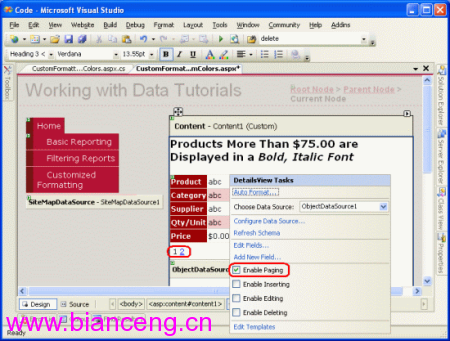
圖一:在 DetailsView 的智慧標籤中檢查 Enable Paging 屬性是否被勾選上
經變更後 DetailsView` 程式碼:
<asp:DetailsView ID="DetailsView1" runat="server" AllowPaging="True" AutoGenerateRows="False" DataKeyNames="ProductID" DataSourceID="ObjectDataSource1" EnableViewState="False">
  <Fields>
    <asp:BoundField DataField="ProductName" HeaderText="Product" SortExpression="ProductName" />
    <asp:BoundField DataField="CategoryName" HeaderText="Category" ReadOnly="True" SortExpression="CategoryName" />
    <asp:BoundField DataField="SupplierName" HeaderText="Supplier" ReadOnly="True" SortExpression="SupplierName" />
    <asp:BoundField DataField="QuantityPerUnit" HeaderText="Qty/Unit" SortExpression="QuantityPerUnit" />
    <asp:BoundField DataField="UnitPrice" DataFormatString="{0:c}" HeaderText="Price" HtmlEncode="False" SortExpression="UnitPrice" />
  </Fields>
</asp:DetailsView>
按 F5 執行查看(見圖 2)。
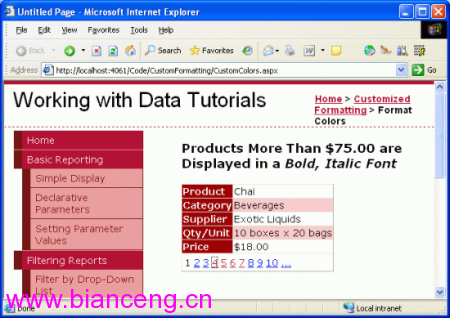
圖二:DetailsView 控制項一次顯示一筆資料