顯示大量已按類別排序但無類別分隔線的資料,用戶難以尋找所需類別。例如資料庫僅 9 類別(8 個不同類別 + 1 個 null),共 81 種產品。用 GridView 列出所有產品,假設用戶對 Seafood 類別感興趣,會按類別排序將 Seafood 產品群組。排序後用戶仍需尋找 Seafood 群組起訖位置。雖按字母排序不難找到,但仍費時。為進一步區分類別,許多網站使用類別分隔線作為排序介面區分不同類別。如圖 1 分隔線可讓用戶快速定位所需類別。
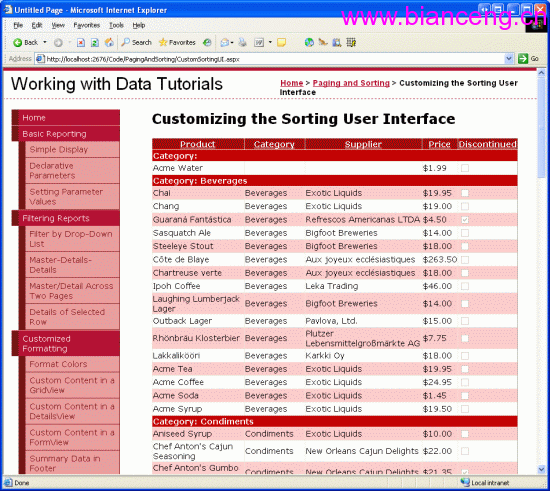
圖 1:不同群組明顯區分開來
本文將講解建立此類排序使用者介面。
學習增強型排序介面前,先建立可排序列出所有產品的基本 GridView。開啟 PagingAndSorting 資料夾下的 CustomSortingUI.aspx,加入 GridView 設 ID="ProductList",以 ObjectDataSource 為資料來源,資料來自 ProductsBLL 類別的 GetProducts()。
接著設定 GridView 欄位:包含 ProductName、CategoryName、SupplierName、UnitPrice 繫結欄與 Discontinued 核取方塊欄,並啟用排序。設定完成後程式碼如下:
<asp:GridView ID="ProductList" runat="server" AllowSorting="True" AutoGenerateColumns="False"
  DataKeyNames="ProductID" DataSourceID="ObjectDataSource1" EnableViewState="False">
  <Columns>
    <asp:BoundField DataField="ProductName" HeaderText="Product" SortExpression="ProductName" />
    <asp:BoundField DataField="CategoryName" HeaderText="Category" ReadOnly="True" SortExpression="CategoryName" />
    <asp:BoundField DataField="SupplierName" HeaderText="Supplier" ReadOnly="True" SortExpression="SupplierName" />
    <asp:BoundField DataField="UnitPrice" DataFormatString="{0:C}" HeaderText="Price" HtmlEncode="False" SortExpression="UnitPrice" />
    <asp:CheckBoxField DataField="Discontinued" HeaderText="Discontinued" SortExpression="Discontinued" />
  </Columns>
</asp:GridView>

<asp:ObjectDataSource ID="ObjectDataSource1" runat="server" OldValuesParameterFormatString="original_{0}"
  SelectMethod="GetProducts" TypeName="ProductsBLL"></asp:ObjectDataSource>
此時瀏覽器預覽將見類似圖 2 介面,資料按類別字母順序排序。
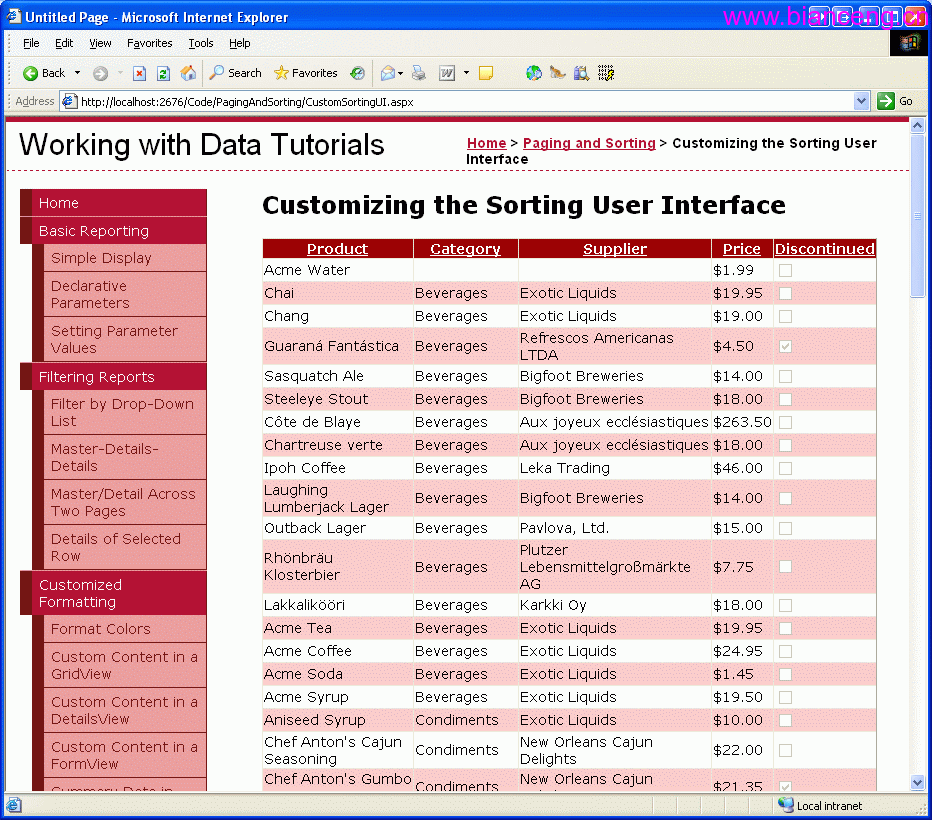
圖 2:可排序 GridView 按 Category 排序