延續「ASP.NET + XML 網路硬碟」主題,本文專注於主介面設計與資料夾瀏覽功能:工程建立、MasterPage 版面配置、TreeView 呈現多層目錄、GridView 列出檔案清單、權限視覺化。
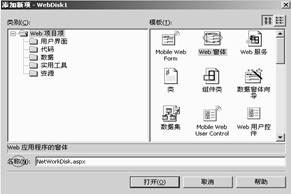
https://localhost/WebDisk。NetWorkDisk.aspx。App_Themes、App_Code、Images 等資料夾。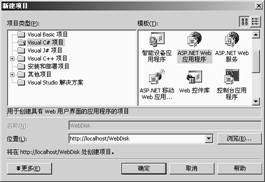
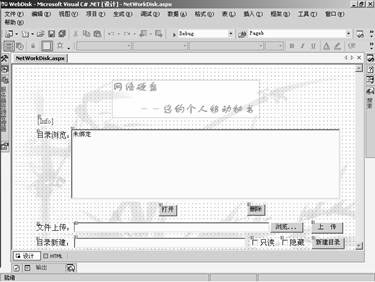
TreeView 顯示資料夾樹,支援展開/摺疊、右鍵選單 (新增/重命名/刪除)。GridView 列出目前資料夾檔案,欄位含類型、名稱、大小、修改時間、操作 (下載/刪除)。private void BindFolderTree(string rootPath, TreeNode parentNode)
{
foreach (string dir in Directory.GetDirectories(rootPath))
{
TreeNode node = new TreeNode(Path.GetFileName(dir), dir);
node.PopulateOnDemand = true; // 延遲載入子節點
if (parentNode == null) TreeView1.Nodes.Add(node);
else parentNode.ChildNodes.Add(node);
}
}
protected void TreeView1_TreeNodePopulate(object sender, TreeNodeEventArgs e)
{
BindFolderTree(e.Node.Value, e.Node);
e.Node.PopulateOnDemand = false;
}
protected void GridView1_RowDataBound(object sender, GridViewRowEventArgs e)
{
    if (e.Row.RowType == DataControlRowType.DataRow)
    {
        FileInfo fi = (FileInfo)e.Row.DataItem;
        // 類型圖示
        Image img = (Image)e.Row.FindControl("imgType");
        img.ImageUrl = GetFileIcon(fi.Extension);
        // 權限圖示
        Image imgLock = (Image)e.Row.FindControl("imgLock");
        imgLock.Visible = IsFolderLocked(fi.DirectoryName);
        imgLock.ToolTip = "此資料夾已設密碼保護";
    }
}
Server.MapPath 轉換,防止目錄遍歷攻擊 (../../)。Response.TransmitFile,支援大檔案不佔記憶體。