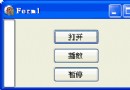
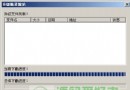
經常上網的朋友一定注意到,瀏覽器底部的狀態列在載入網頁時會顯示一個動態進度條,隨著資料下載逐格前進,直觀提示使用者目前進度。這項技術不僅廣泛應用於瀏覽器,像熱門的 BT 下載軟體也大量採用。對於開發網路軟體的程式設計師來說,掌握在狀態列嵌入進度條的技巧是相當實用的基本功。
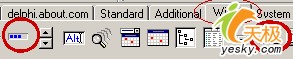
首先啟動 Delphi,從「Win32」頁面拖曳 StatusBar(狀態列) 組件到表單上。預設情況下,狀態列會自動停駐在表單底部(Align 屬性為 alBottom),並包含一個面板。為了示範方便,我們再新增一個面板:
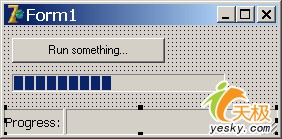
Progress:。接著從工具箱拖曳 ProgressBar(進度條) 到表單上。此時進度條位於狀態列上方,而非內部。要將它真正放入面板並能正常運作,關鍵在於以下兩步:
procedure TForm1.FormCreate(Sender: TObject);
var
  ProgressBarStyle: Integer;
begin
  // 將狀態列第二個面板設為自繪模式
  StatusBar1.Panels[1].Style := psOwnerDraw;
  // 將進度條放入狀態列
  ProgressBar1.Parent := StatusBar1;
  // 移除進度條邊框,使其與狀態列融為一體
  ProgressBarStyle := GetWindowLong(ProgressBar1.Handle, GWL_EXSTYLE);
  ProgressBarStyle := ProgressBarStyle - WS_EX_STATICEDGE;
  SetWindowLong(ProgressBar1.Handle, GWL_EXSTYLE, ProgressBarStyle);
end;
procedure TForm1.StatusBar1DrawPanel(StatusBar: TStatusBar;
  Panel: TStatusPanel; const Rect: TRect);
begin
  // Panels[1] 為第二個面板(索引從 0 開始)
  if Panel = StatusBar.Panels[1] then
    with ProgressBar1 do begin
      Top := Rect.Top;
      Left := Rect.Left;
      Width := Rect.Right - Rect.Left - 15; // 預留邊距
      Height := Rect.Bottom - Rect.Top;
    end;
end;
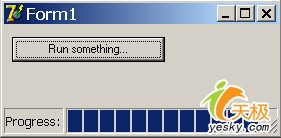
在表單上放置一個 Button 與 Memo 組件(如圖所示),撰寫按鈕點擊事件:
procedure TForm1.Button1Click(Sender: TObject);
var
  i: Integer;
begin
  ProgressBar1.Position := 0;
  ProgressBar1.Max := 100;
  for i := 0 to 100 do begin
    ProgressBar1.Position := i;
    Sleep(25); // 模擬耗時操作
  end;
end;
按下 F9 執行程式,點擊按鈕即可看到進度條在狀態列中平滑運行。這項技術同樣適用於檔案下載、資料處理等長時間操作的進度提示,顯著提升使用者體驗。